
Table Column Resize / Reorder
Overview
The ThreatConnect threat intelligence platform (TIP) is a data heavy platform that relies on tables, which has a large effect on the UI. There were many requests for additional customizability within the data tables by customers. The implementation of this new customizability began with search tables, with plans to incorporate these features into other tables based on user feedback of this first implementation.. Column resizing and column reordering were the first options introduced, based on feedback from multiple customers.
Created while working at ThreatConnect
Details
Exploring Requirements for Resize & Reorder Capabilities
Crucial questions had to be considered while undertaking this:
- What are the minimum widths allowable for a given column?
- What are the default column widths by type?
(e.g., date only columns, date/time columns, columns that only display counters with flyouts, etc.) - How do we allow a horizontal scroll without it being cumbersome?
- Do any columns stay frozen when a horizontal scroll appears?
- How do the columns behave by default when adding additional columns to a table?
- Are there any columns that should not be allowed to be resized and/or reordered?
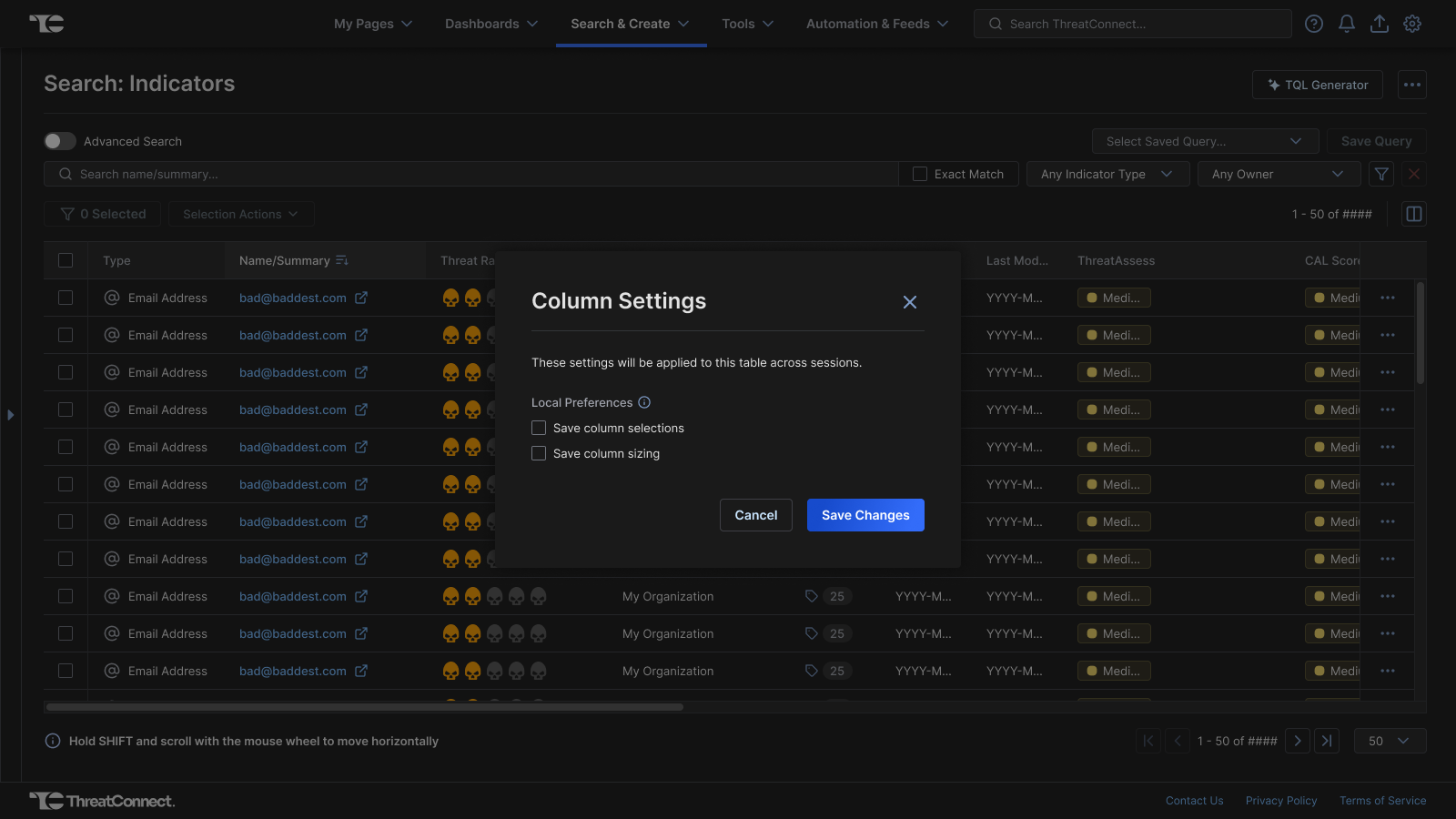
- How do we go about saving these user preferences? Or resetting what was changed back to the default?
- How do we make this feature keyboard accessible?
Changes Made to Accommodate the Feature
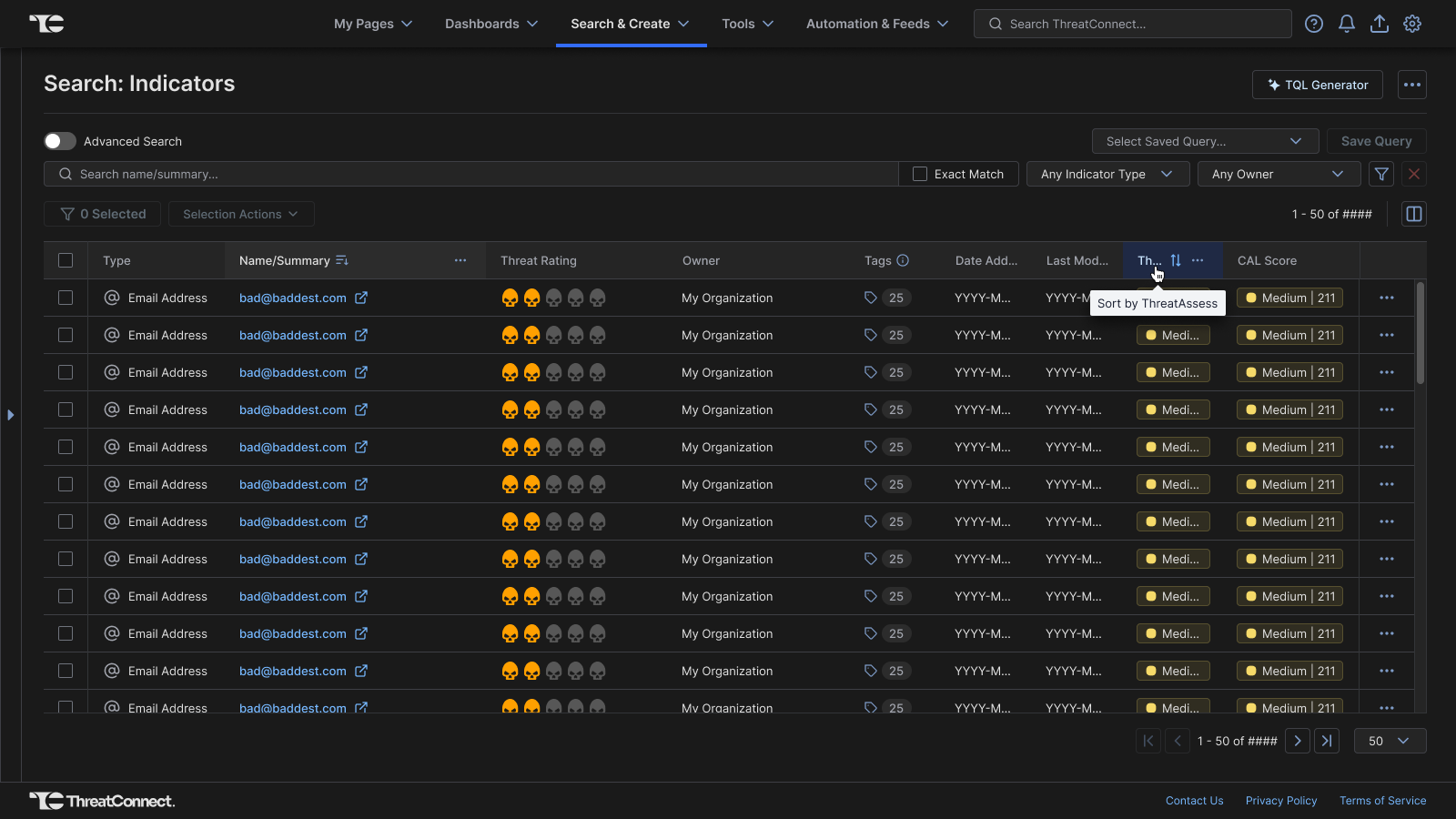
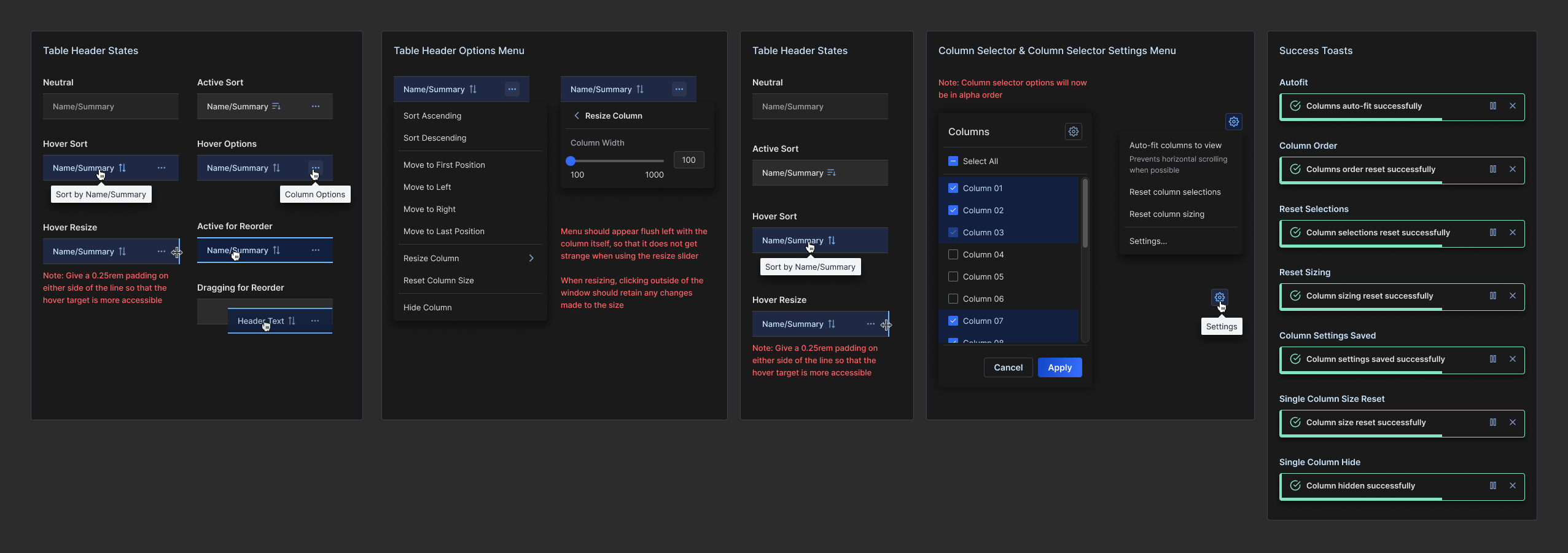
Before columns were made resizable, the table would adjust based on the responsive nature of the page. This created many issues with table header names stacking and data being largely unreadable.Column names were truncated and the full value was shown in a hover tooltip. With the introduction of resizing columns, this allowed this to be easily avoided after implementation.
The checkbox area and row action area remain frozen when horizontal scroll appears, and reordering of these bookend columns was disallowed. Thus the columns were visually separated by a vertical rule from the rest of the columns.
Reorder Feature
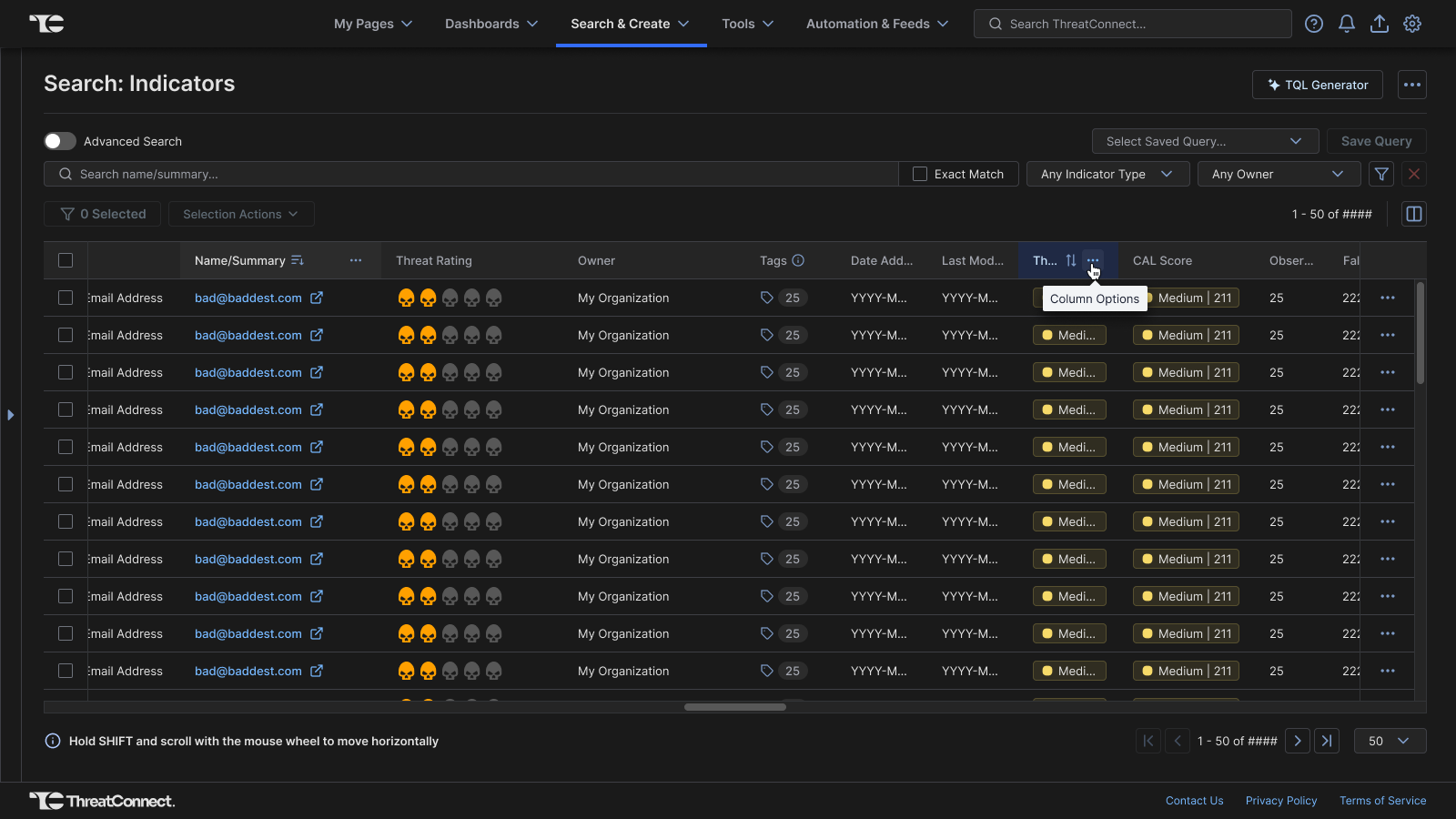
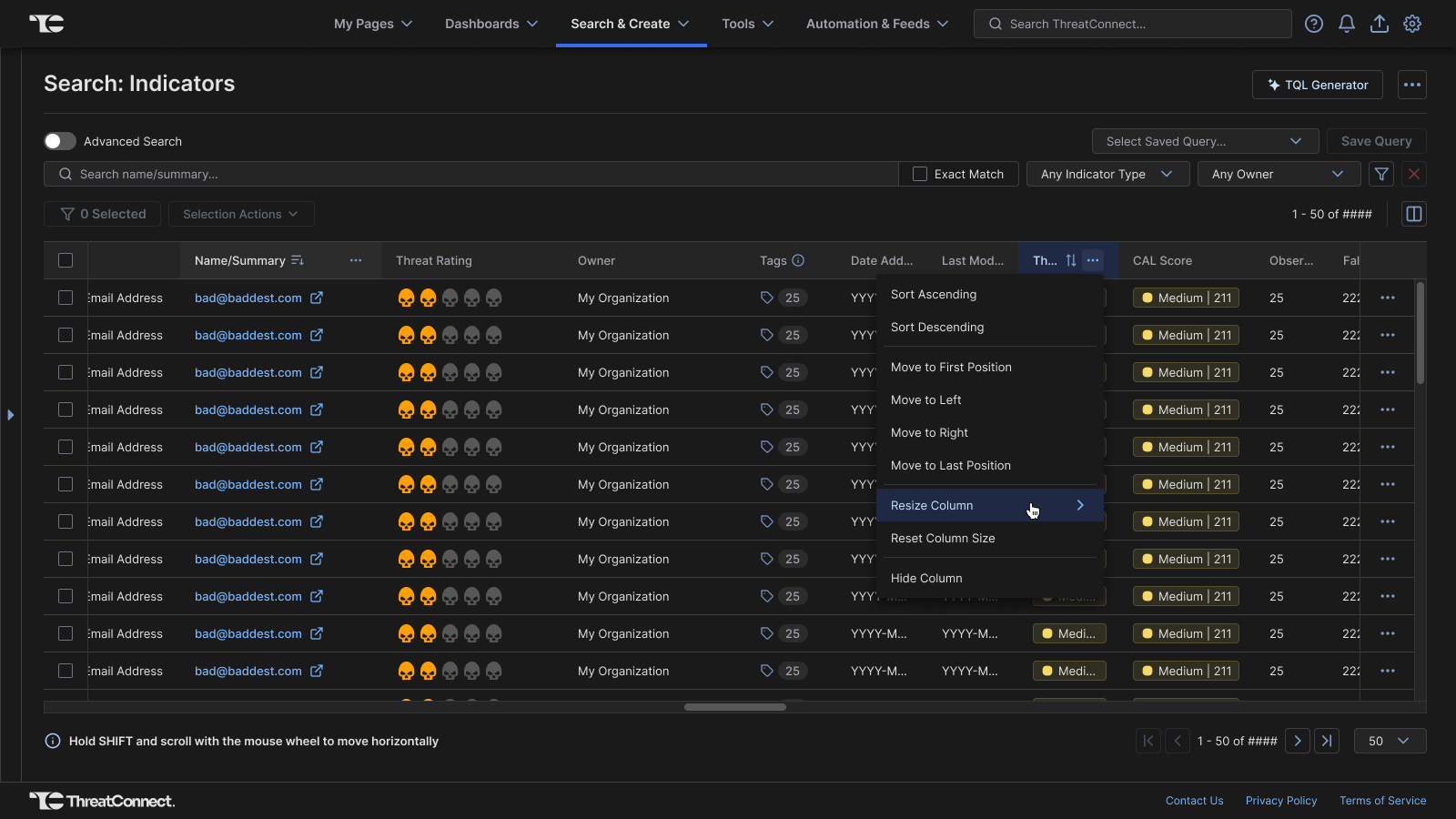
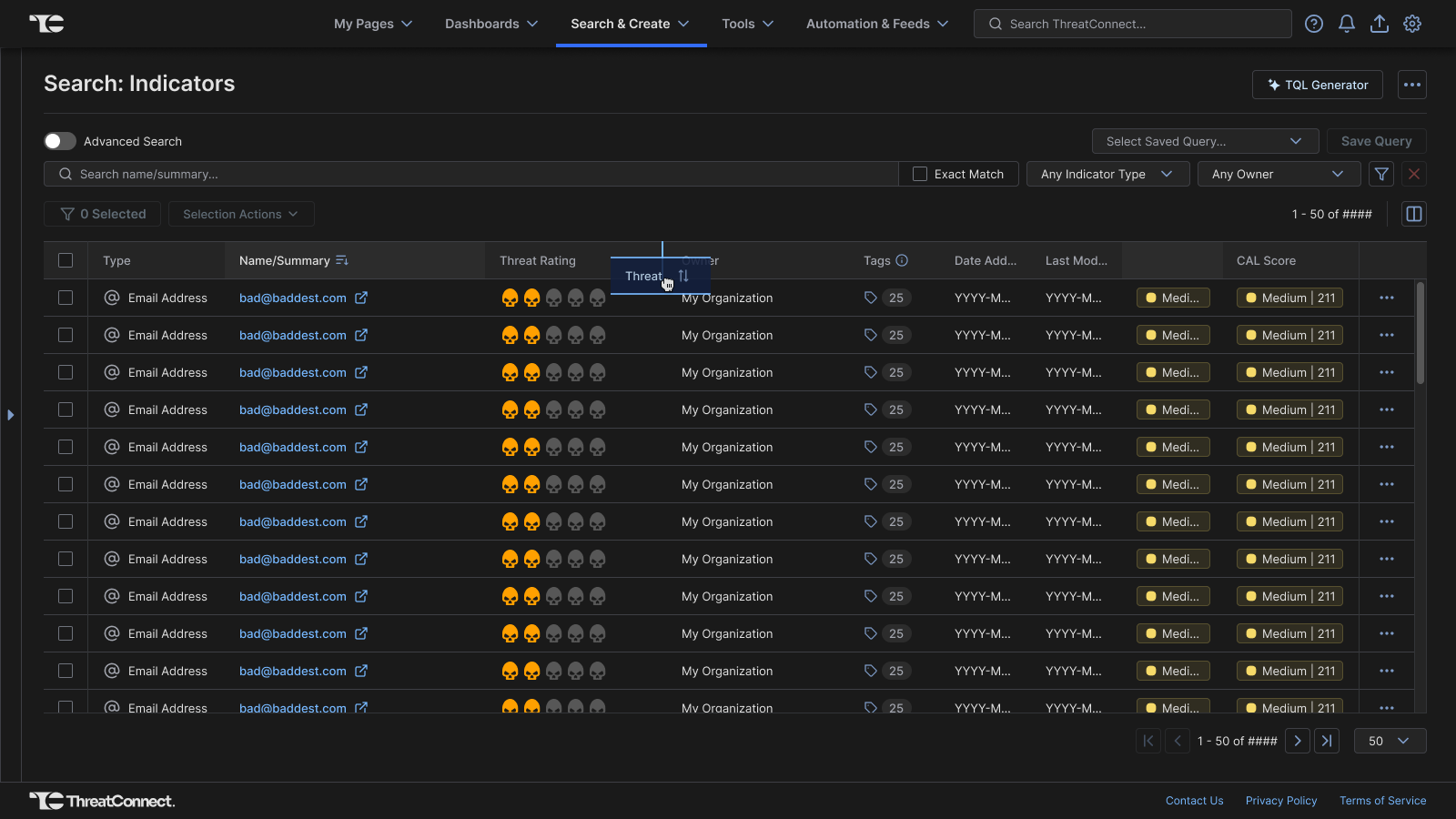
Reorder was to be done either by drag & drop or by using a column's options menu (i.e., move left, move right, move to first position, and move to last position) which allows for it to be done entirely via keyboard. From within the larger column selector, users could save their column order to their user preferences, or reset all of the column positions to the default.
Resize Feature
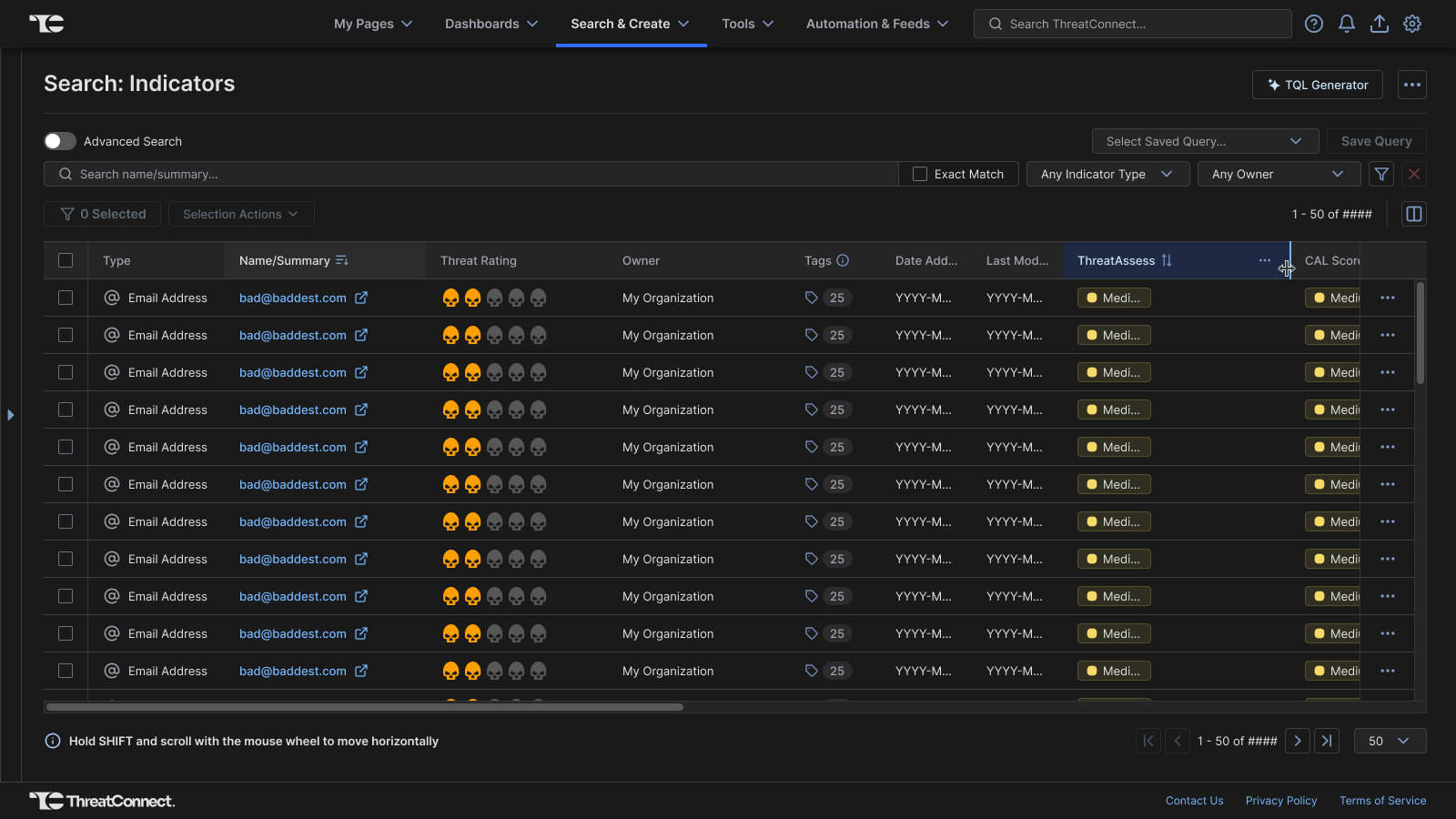
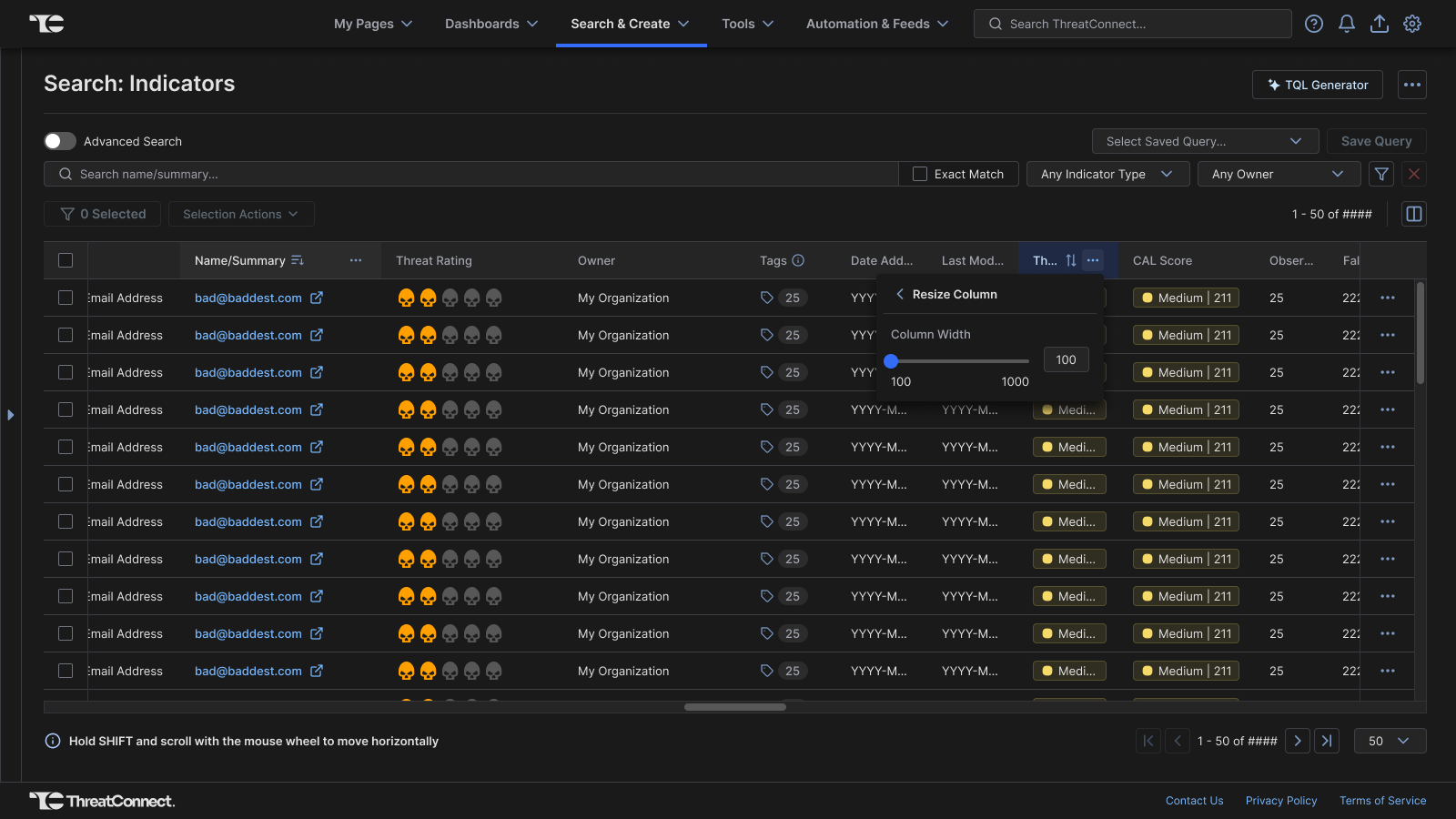
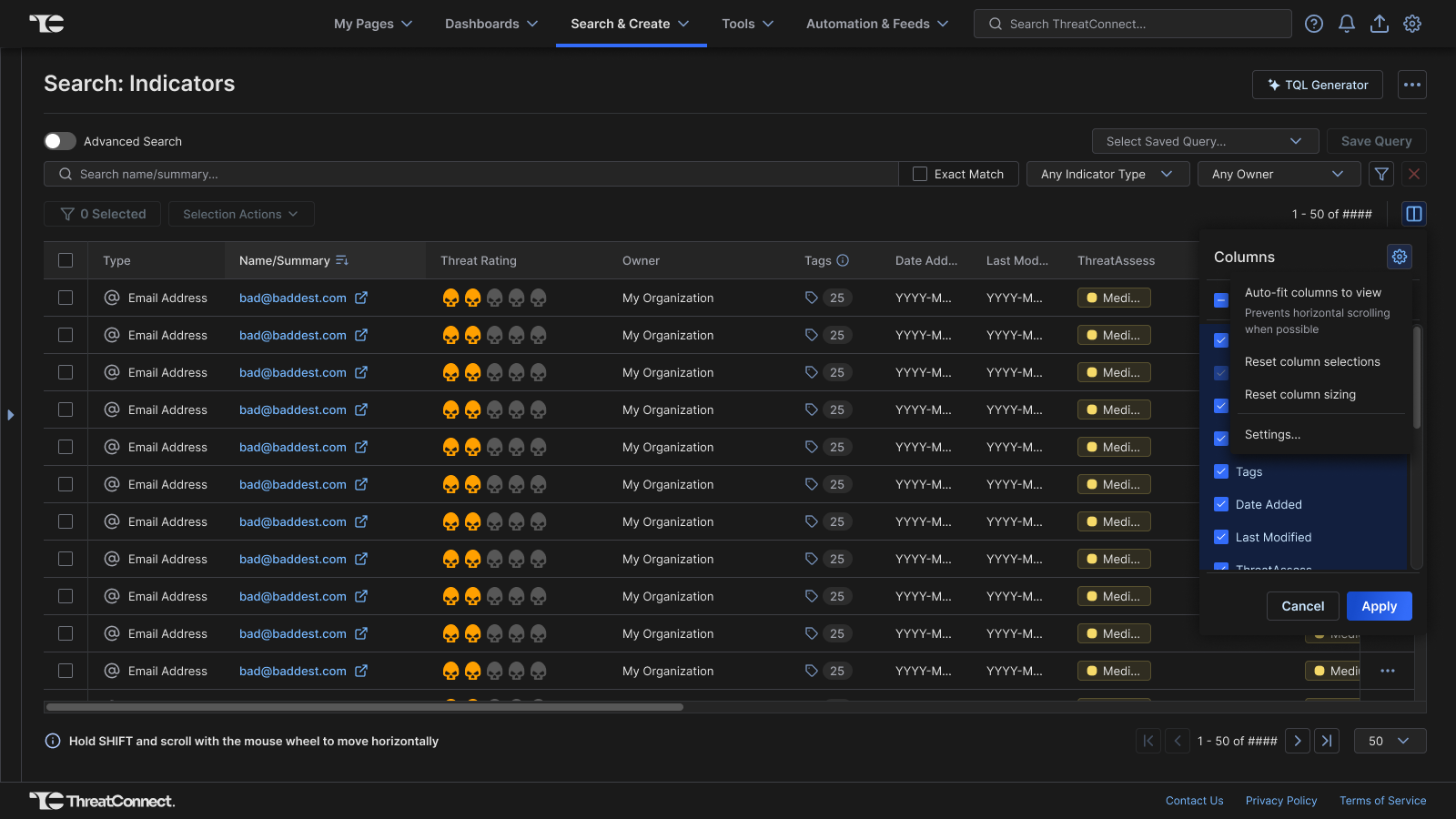
Similar to the reorder feature, resizing was to be done either by dragging a column to the desired width or by using a column's options menu slider control which allows for it to be done entirely via keyboard. Resetting individual columns to their default size was made available via a column's individual options menu. From within the larger column selector, users could save their column sizes to their user preferences, auto-fit all columns into the view (to prevent a horizontal scrollbar), or reset column widths to the defaults.